How to use Idea to Video in 2025 with AI
You can turn any idea into a video in just minutes using AI tools in 2025. These platforms make the process simple for everyone—no editing experience needed. In fact:
AI-generated videos are expected to make up 40% of all content on major social media platforms this year.
The market for AI video creation tools is growing fast, with more people choosing quick, creative solutions.
What makes AI video tools special in 2025? |
|---|
They automate editing, scriptwriting, and even voiceovers. |
You can create videos from text or prompts with just a click. |
These tools let you focus on storytelling, not tech details. |
Ready to see how to use Idea to Video and bring your vision to life?
What is Idea to Video
Definition
Idea to Video means turning your thoughts or stories into a finished video using AI. You do not need to know how to edit or film. You just bring your idea, and the AI helps you with the rest. These tools guide you from the first spark of inspiration all the way to a polished video you can share.
You might wonder what steps go into this process. Here’s a simple table that breaks it down:
Stage | Description |
|---|---|
Content Development | Use AI to help plan, research, and shape your video idea. |
Preproduction | Let AI assist with script writing, storyboarding, and creative planning. |
Production | Create your video with AI tools that automate filming and scene creation. |
Postproduction | Edit and polish your video using AI for smooth, professional results. |
You can use different AI helpers at each stage. For example:
AI meeting assistants help you brainstorm and plan.
AI writing tools draft your script.
Text-to-image generators make storyboards.
AI video tools build your scenes.
AI editors fix and finish your video.
You get a full video workflow, all powered by smart technology.
Why Use AI in 2025
AI video tools in 2025 feel like magic. You get more control over your videos than ever before. The results look real and lifelike, so your stories come alive on screen. You can make changes quickly and see instant results.
Here are some reasons why you should use AI for video creation this year:
Videos look more realistic and natural.
You can shape every detail to match your vision.
AI handles tough tasks that used to take hours.
You spend less time editing and more time creating.
Tip: You do not need to be a tech expert. AI tools in 2025 are built for everyone. Just bring your idea, and let the AI do the heavy lifting.
How to use Idea to Video
Brainstorm Ideas
You start every great video with a spark of inspiration. In 2025, you do not have to wait for ideas to come to you. AI video tools help you brainstorm fast. For example, platforms like Argil can turn a simple prompt into a full video script. You just type a few words about your topic, and the AI suggests storylines, scenes, and even catchy titles. This means you spend less time stuck and more time creating.
Tip: If you ever feel stuck, let the AI suggest ideas. You can always tweak them to fit your style.
How to transform idea into videos?
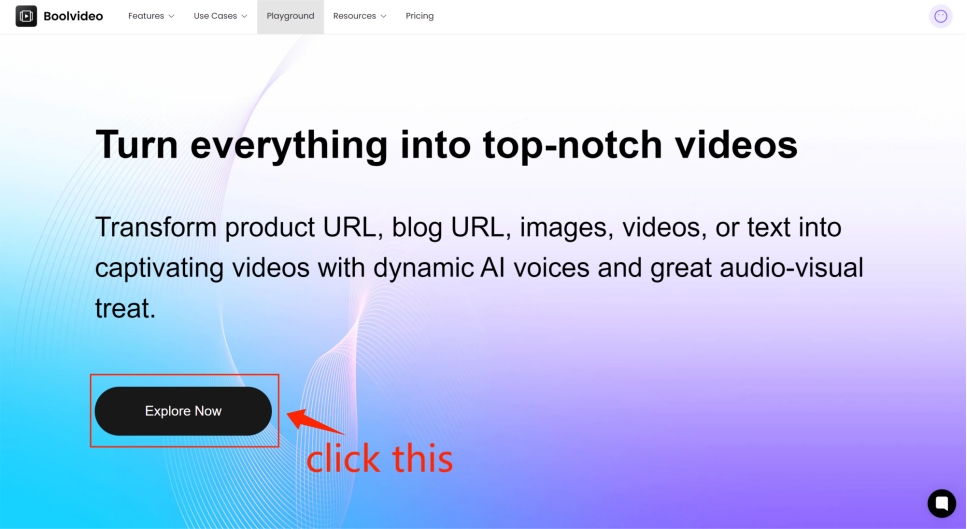
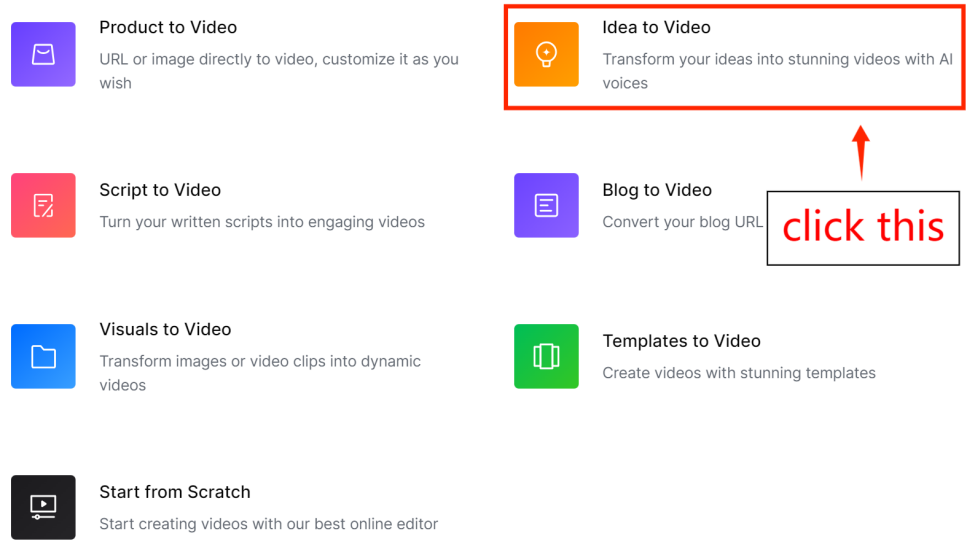
Step1: go to Idea to Video
From the home page click 'Explore Now' to enter the main page, then select 'Idea to Video'.
Step2: Input your idea and personalize video properties
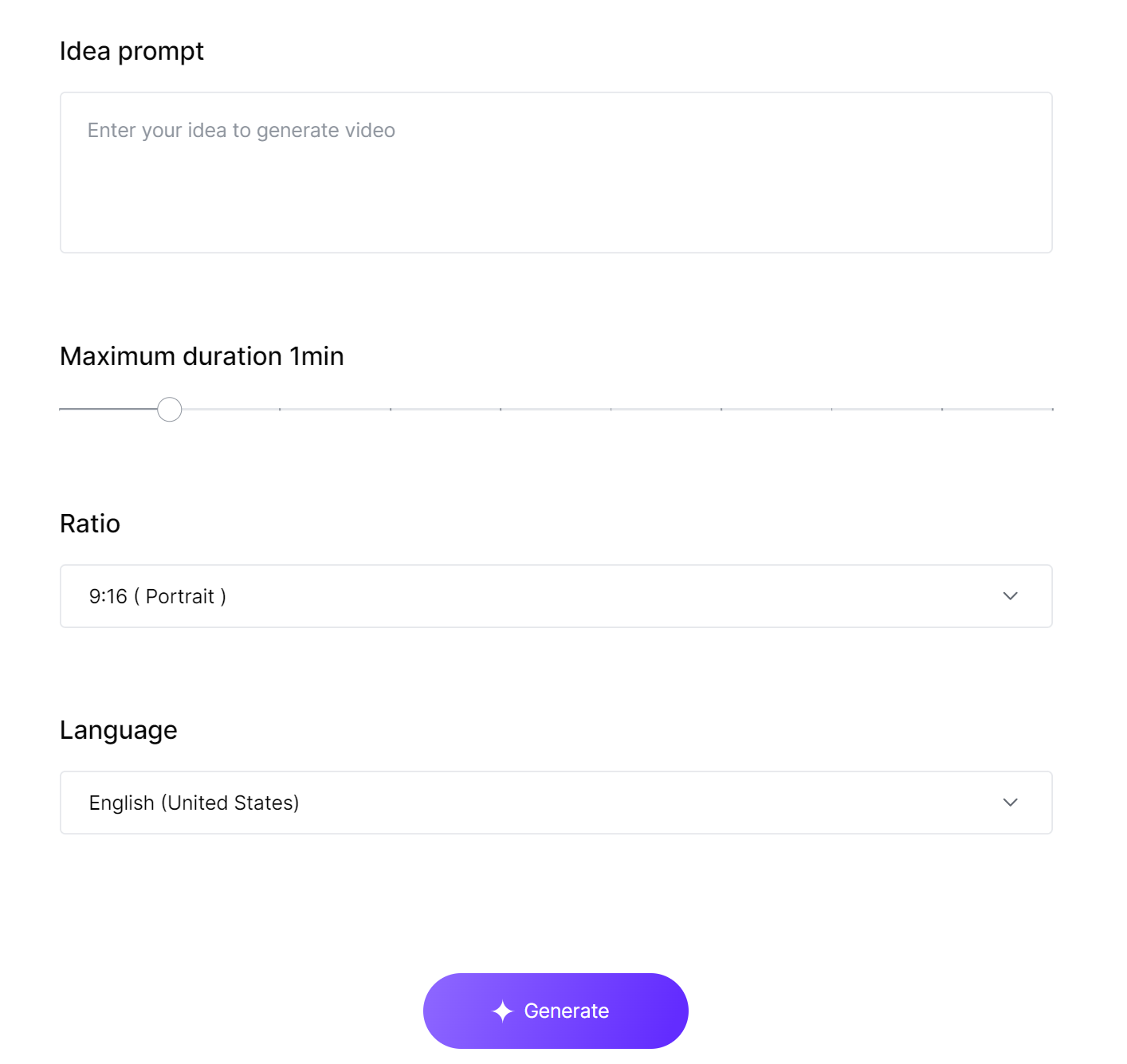
According to the prompts, enter your idea, set the video duration, aspect ratio, and language, and then click 'Generate' to create the video.
Step3: Preview and Customize your video
Wait a moment, and the generated clips will be displayed on the Scene editor. You can edit the video, change the language, and choose the video name and resolution upon export. For specific editing tutorials, please refer to our other article: How to edit video in Scene Editor.
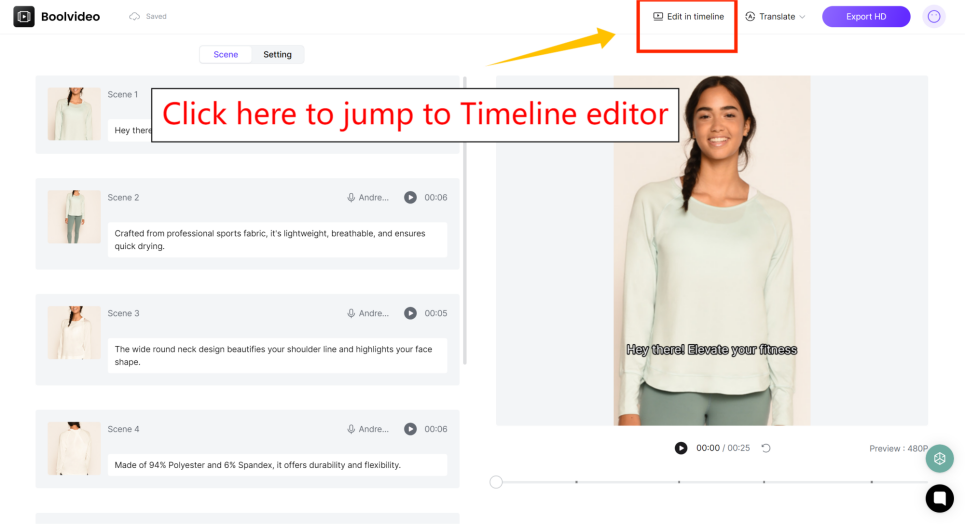
If you are not satisfied with the generated results, you can click 'Edit in timeline' in the top right corner to enter our powerful timeline editor for adjustments. For specific guidance, please refer to our other article:
How to edit videos in Timeline Editor
This post will show you step-by-step how to edit videos in Timeline Editor.
Step 4: Export your video
If you are satisfied with the generated results, you can export them directly.
Prepare Script or Prompt
Once you have your idea and tool, it’s time to prepare your script or prompt. Many AI video tools help you write scripts, even if you do not know where to start. Tools like Microsoft Copilot and ChatGPT can turn your ideas into structured scripts. You can also use them to create several scripts at once or adapt old scripts for new videos.
Here’s what these tools can do for you:
Functionality | Description |
|---|---|
Script Generation | Turns your prompt into a ready-to-use script. |
Content Selection | Finds the best stock images and video clips for your topic. |
Voiceover Production | Creates voiceovers that match your script. |
Background Music and Transitions | Adds music and transitions that fit your story. |
AI helps you organize your thoughts and gives your video a clear structure.
You can repeat this process to make a whole series of videos quickly.
Tip: If you get writer’s block, let the AI suggest a script. You can always edit it later.
Best Practices
Creativity Tips
You want your videos to stand out and feel unique. AI tools can help you get creative, but you need to guide them. Here are some tips to spark your imagination:
Define a Clear Objective
Start by deciding what you want your video to achieve. A clear goal helps you write better prompts and keeps your story focused.Use Specific and Descriptive Language
When you give instructions to the AI, be detailed. Instead of saying "make a fun video," try "create a video about a summer picnic with bright colors and laughter." The more details you add, the better your results.Include Visual and Emotional Cues
Tell the AI how you want viewers to feel. Add words like "exciting," "calm," or "inspiring" to your prompt. You can also mention colors, settings, or moods. This makes your video more relatable and memorable.
Tip: If you ever feel stuck, ask yourself what emotion you want your audience to feel. Let that guide your prompt.
Quality and Efficiency
You want your videos to look professional and get finished fast. AI video tools in 2025 make this easy. Here are some ways to boost quality and save time:
FlexClip and Veed give you quick-start templates for social media. You can pick a style and get started right away.
Canva offers an all-in-one platform. You can use AI features to keep your branding consistent across every video.
Runway lets you edit and tell stories with advanced AI tools. You can add effects and polish your video with just a few clicks.
InVideo and Synthesia help you create videos quickly. Their user-friendly platforms make editing simple.
Customize templates to match your brand. Change colors, fonts, and music so your video feels unique.
Murf and Descript work well with other tools. You can add voiceovers or edit audio for a professional touch.
Pro tip: Start with a pre-built template in your AI video tool. Then customize it to fit your brand. This helps your content stand out and saves you time.
If you follow these best practices, you will master How to use Idea to Video and create videos that look great and connect with your audience.
Troubleshooting
Common Issues
You might run into a few bumps when you use AI video tools. Don’t worry—most problems have easy fixes. Here are some common issues you could face:
Sometimes, the video shows stiff or unnatural movement. AI can struggle with dynamic scenes.
You may notice strange visual glitches, called AI artifacts, that lower video quality.
If your prompt is too vague, the video might not match your vision.
Some tools don’t have enough editing features, which makes complex projects harder.
Audio and visuals can get out of sync. Lip movements might not match the words, or sound may lag behind the action.
Timing problems can happen if you use the wrong frame rate or starting point.
Technical limits in your software or hardware can cause delays during rendering.
Tip: If you spot any of these issues, take a closer look at your project settings and prompts. Small changes can make a big difference.
Improving Results
You want your video to look smooth and professional. Here’s how you can fix common problems and get better results:
Audio Sync and Visual Match
Match the frame rate and audio sample rate before you start.
Pre-synchronize your audio and video assets. Edit them together first.
Use markers or timestamps to anchor audio to scenes if your tool allows.
Test your video on different devices to check for playback issues.
If sync problems remain, re-render the video with new settings.
Manual and Automated Fixes
Shift the audio track during editing to line up with visuals.
Use software that automatically corrects timing errors.
Keep your audio and video settings consistent from the start.
Check your work often while editing to catch problems early.
For tough projects, you might want to ask a professional for help.
Refining Prompts for Better Output
Make your prompts clear and detailed. Tell the AI exactly what you want.
Add context, like setting, action, and technical details. This helps the AI create a video that matches your idea.
Break down abstract ideas into simple instructions. The more specific you are, the better your video will look.
Troubleshooting Step | What It Does |
|---|---|
Adjust frame rates | Fixes timing and sync issues |
Refine your prompt | Improves video quality and accuracy |
Use editing tools | Helps you fix audio, visuals, and transitions |
Test on different devices | Finds hardware or playback problems |
Note: You can always try a different AI video tool if you keep running into trouble. Each platform has its own strengths, so explore until you find one that works for you.
Advanced Tips
Voiceovers and Music
You want your video to sound great. In 2025, AI makes audio easy. You can add voiceovers and music fast. Here are some things you can do:
Real-time music generation helps you make soundtracks that fit your video’s mood.
Emotional AI analysis picks music that matches each scene’s feeling.
Voice-controlled audio editing lets you say, “Make the music louder,” and the AI does it for you.
Personalized music experiences let viewers hear songs based on their own tastes.
Interactive audio elements allow your audience to change music while watching.
Cross-platform audio synchronization keeps your sound working well on every device.
You can use tools like ElevenLabs AI Sound Effect Generator, LoudMe AI Music Generator, and Wondershare Filmora. These platforms help you add sound effects, background music, and voiceovers that sound natural. If you want your video to be more fun, try Argil or Plugger AI for advanced audio features.
Tip: Always listen to your video before sharing. Good audio helps people remember your story.
Branding
You want your brand to stand out in every video. AI video tools in 2025 make branding simple. You can add your logo, custom intros, and outros to keep your style the same. Look at this table to see how platforms help you:
Feature | Description |
|---|---|
Add your logo and custom intro/outro sequences to keep your branding the same everywhere. | |
Customizable Video Templates | Use templates for different business needs, so your branding looks professional and stays the same. |
Brand Control | Stick to your brand’s look and rules with strong customization features. |
You can use How to use Idea to Video for marketing by making videos for your audience. AI lets you create content that changes based on what viewers do. You get more people to watch and buy. Some platforms let viewers click on things and shop right from the video. Reports show a 24% increase in sales when you use these features.
AI-powered platforms share your videos at the best times and change them for viewers. This keeps your marketing strong and your brand easy to see.
You can turn any idea into a video with just a few clicks. AI video tools in 2025 make the process simple for everyone. You get to focus on your story while the AI handles the hard work. Here’s what you gain:
Create high-quality videos without a big budget
Finish projects faster and share your message with ease
Ready to bring your ideas to life? Try an AI video tool today and see what you can create!
FAQ
How long does it take to make a video with AI?
You can make a video in just a few minutes. Most AI tools work fast. You only need to enter your idea or script, and the tool does the rest.
Do I need any special skills to use AI video tools?
No special skills needed! You just follow simple steps. The AI guides you through the process. You can create videos even if you have never edited before.
Can I use my own photos and music in the video?
Yes, you can! Most AI video tools let you upload your own images, clips, or music. This helps you make your video more personal and unique.
Are AI-generated videos good for business or school projects?
Absolutely! AI videos look professional and save you time. You can use them for marketing, lessons, or presentations. Many teachers and business owners use these tools every day.
See Also
Become Proficient in Transforming Ideas into Videos by 2025
Craft Eye-Catching Video Advertisements Using AI Tools in 2025
Top Five AI Video Creation Tools for Creators in 2025
Utilizing AI to Convert Written Content into Captivating Videos
Generating Revenue with AI for Anonymous YouTube Videos in 2025
Accelerate your video production
10X with Boolvideo