Transform Static Images to Dynamic Videos with AI

Have you ever thought about how to make your product display images more attractive, thereby attracting more fans or sales? Converting static images into dynamic videos is a game changer for storytelling and branding. A single image can only illustrate so much, but when you add actions, music, and effects, it becomes captivating video content that catches the eye.
Brands like X company have already used this method to showcase their products, increasing engagement and sales. If you have the right skills and tools, you can also do it. Let's start creating today!
Why Create Dynamic Video Content from Static Images?
Enhance brand and professional spirit
Dynamic video content can immediately enhance your brand image. High quality videos demonstrate your concern for presentation and professionalism. Consumers prefer brand video content on social media, with 76% of video marketers using platforms such as Instagram and Facebook to share their creations.
Increase participation
Converting still images into videos is one of the best ways to attract attention and increase engagement. Video provides an immersive experience that static images cannot compare to. They attract the audience and keep them fascinated for a longer period. Do you know that tweets with videos are 10 times more frequent than tweets without videos? This is a huge difference! In addition, short videos (less than 30 seconds) can increase completion rates by 200%.
Step-by-Step Guide to Turning Still Images into Videos
Using Beginner-Friendly Tools
It's quite simple to achieve this goal. After you have the original product images, all you lack is a tool that can turn them into dynamic videos. You don't need to become a professional to create dynamic video content. Beginner-friendly tools like Boolvideo make this process simple. Boolvideo stands out with its intuitive interface, making it perfect for beginners who want to create stunning videos without steep learning curves.
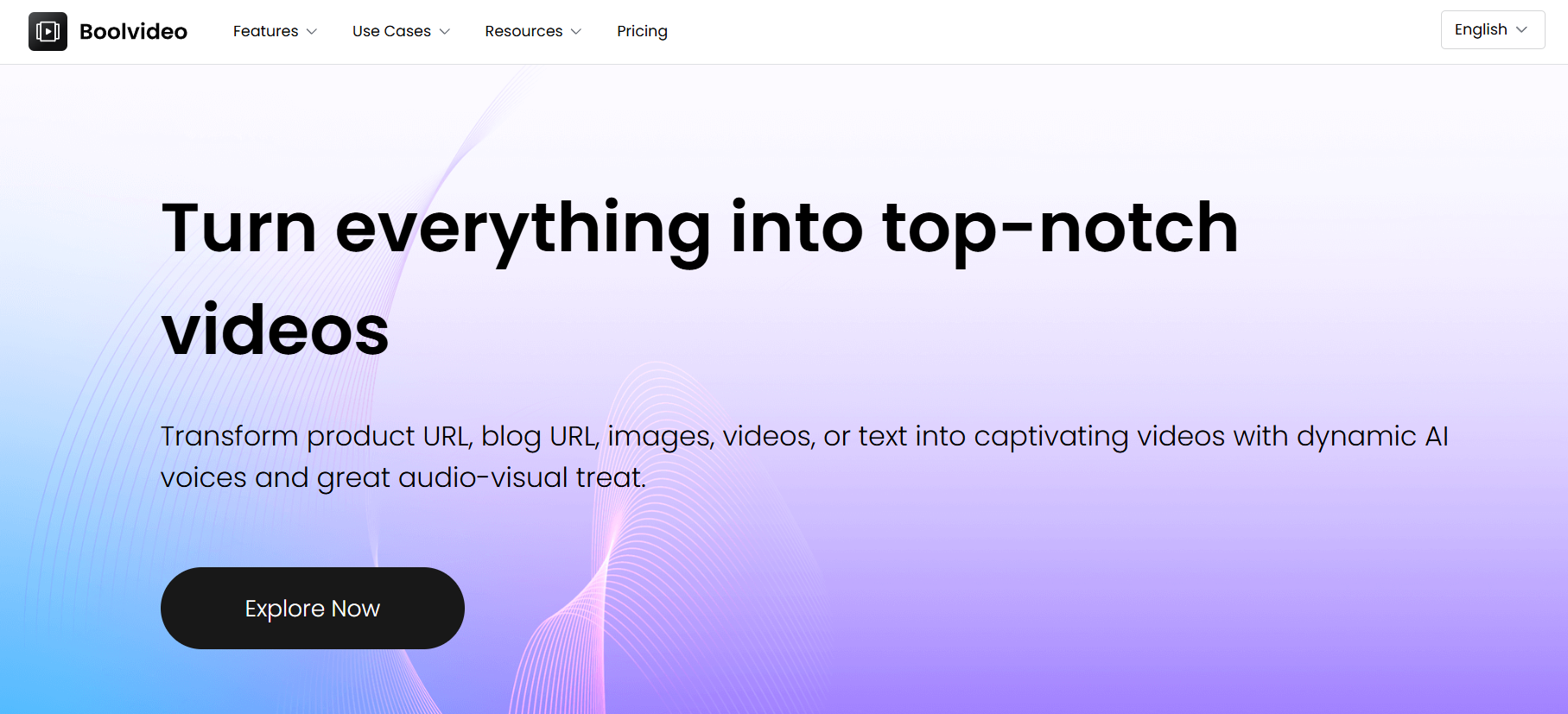
How Boolvideo simplifies the process for beginners
If you're just starting, Boolvideo is a good choice. It can help you convert still images into videos. With pre-made templates, built-in music options, and simple editing tools, you can create videos that look professional in just a few minutes.
This feature is a new feature recently launched by Boolvideo. I have tried it out for you and it is powerful. You just need to prepare a product URL or a product image, input it in a specific location, and wait for 3-5 minutes to get a dynamic video. This dynamic feeling is not as stiff and unnatural as some AI tools generate, but Boolvideo generates it very naturally and excellently, and the texture of the picture is also great. Let me show you the effect it generates!
Do you think the effect is very good after watching it? If you're tempted, come and give it a try immediately!
Create Video Now
Get high-quality dynamic videos now
Practical Tips for Creating Stunning Dynamic Video Content
Creating stunning dynamic video content with AI tools can elevate your projects to new heights. Here are some practical tips to help you make the most of these powerful technologies:
1. Define Your Goals and Audience
Clear Objectives: Before diving into AI video creation, clarify what you want to achieve. Is it to entertain, educate, or inspire? Knowing your goals will guide your content strategy.
Know Your Audience: Understand who will watch your video. Tailor your content to their interests, preferences, and viewing habits. This ensures your video resonates and engages your target audience.
2. Choose the Right AI Tools
Research and Compare: There are numerous AI video tools available, each with unique features. Some excel at animation, while others focus on live-action enhancement or text-to-video generation. Evaluate tools based on your specific needs.
Trial and Error: Many AI tools offer free trials or demo versions. Experiment with different platforms to see which one aligns best with your workflow and desired output.
3. Develop a Strong Script and Storyboard
Compelling Script: A well-written script is the backbone of your video. Make it engaging, concise, and tailored to your audience. AI tools can help generate script ideas, but human creativity is still crucial for crafting a compelling narrative.
Storyboarding: Visualize your video through a storyboard. Outline each scene, including key elements like characters, settings, and transitions. This helps you plan the flow and structure of your video content.
4. Optimize for AI Processing
High-Quality Inputs: When using AI for video enhancement or generation, provide high-quality source material. Clear images, well-recorded audio, and detailed descriptions will yield better results.
Detailed Prompts: For text-to-video AI tools, use specific and descriptive prompts. Include details about the setting, characters, actions, and emotions to guide the AI in creating accurate and visually appealing content.
5. Enhance Visual and Audio Elements
Visual Effects: Leverage AI tools to add dynamic visual effects, animations, or transitions. These can make your video more engaging and visually appealing without requiring extensive manual editing.
Audio Integration: Ensure your audio is clear and synchronized with the visuals. AI can help with background music generation, voiceovers, or even noise reduction to enhance the overall viewing experience.
6. Iterate and Refine
Review and Edit: AI-generated content may need refinement. Review your video multiple times, checking for consistency, coherence, and alignment with your goals. Make adjustments as needed.
Feedback Loop: Share your video with a small test audience and gather feedback. Use this input to make improvements and ensure your final product is polished and impactful.
7. Stay Ethical and Transparent
Ethical Use: Be mindful of ethical considerations when using AI. Avoid creating misleading or harmful content. Always respect copyright laws and use AI responsibly.
Transparency: If appropriate, disclose the use of AI in your video creation. This builds trust with your audience and promotes transparency in the digital content ecosystem.
FAQs
How do I choose the best images for my video?
Pick high-resolution images with sharp details. Avoid blurry or pixelated ones. Ensure the lighting and style are consistent across all images. This creates a cohesive and professional-looking video. If needed, adjust brightness or contrast during editing.
What beginner-friendly tools can I use to create videos?
Tools like Boolvideo, Canva, and Kapwing are great for beginners. They offer templates, drag-and-drop features, and built-in effects. Boolvideo simplifies the process, making it easy to turn any image into dynamic content quickly.
How can I make my video more engaging?
Add motion effects like zoom or pan to your images. Use smooth transitions between frames. Include captions or text overlays to highlight key points. Pair your video with music that matches the mood to keep viewers hooked.
What’s the best way to share my video on social media?
Tailor your video to the platform. For Instagram, keep it short and visually striking. On TikTok, focus on fast-paced, creative content. Use hashtags and captions to boost visibility. Post during peak hours for maximum engagement.
Can I use copyrighted music in my video?
No, avoid copyrighted music unless you have permission. Use royalty-free music from libraries included in video editing tools. This ensures your content stays legal and professional.
Accelerate your video production
10X with Boolvideo