How to use Script to Video Always Wins with AI

You can turn your ideas into videos in just a few clicks. AI script-to-video tools make it simple and fast, even if you have never edited a video before. About 63% of creators use these tools to speed up their process. AI platforms let you make videos up to 20 times faster than old editing methods. You get cool features like automated editing and voiceovers. Check out the table below to see how AI saves time:
Method | Production Time | Turnaround Time |
|---|---|---|
AI Platforms | Weeks to hours | 50-90% faster |
Traditional Post-Production | 40-80 hours for 5 minutes | Slower |
If you want to learn how to use Script to Video, you will love how easy it is.
How to Use Script to Video
Choose Your AI Tool
To use script to video, you need to pick an AI tool first. There are lots of tools. Each one has something cool or different. Here are some popular ones:
Tool Name | Unique Features |
|---|---|
Hailuo AI | Great for animation; characters look the same; you can try it for free. |
Open AI Sora | Makes movie-like videos; lets you remix and plan scenes; not great with fast movement. |
Google Veo 2 | Shows real physics; keeps motion smooth; only a few people can use it now. |
Boolvideo | Turns words or pictures into videos; edits with AI; works well for mixing media; has editing tools. |
Veo by Google | Understands movement well; makes videos look real; good at showing how things move. |
Synthesia | Makes lifelike AI people; easy to use; perfect for teaching videos and ads. |
When you use script to video, pick a tool that matches what you want. Think about these things:
Criteria | Description |
|---|---|
Avatar Quality | See if the avatars look real and show feelings. |
Voice Options | Check if there are lots of voices and languages. |
Ease of Use | Make sure you can find templates and features quickly. |
Security | Look for strong safety and ways to protect your data. |
Research | See if the tool gets better with new updates. |
Prepare Your Script
Next, get your script ready to use script to video. A good script helps your video stand out. Try these tips:
Know your goal. What should viewers do after watching?
Learn about your topic. Use facts that are current.
Plan your video. List the main ideas like a table of contents.
Split each scene. Give every part a clear job.
Write in a friendly way. Speak directly to your viewers.
Keep it short and simple. Make every word matter.
Begin with something strong. Ask a question or share a cool fact.
Tip: If you know how to use script to video, you can use script templates again for other projects. This saves time and helps your videos look the same.
If you follow these steps, you will learn how to use script to video and make videos that people want to watch.
Convert Script to Video
Turning your script into a video with AI is easier than ever. You just need to follow a few simple steps. Let’s walk through the process together.
Import Script
Start by uploading your script. Most text to video tools let you paste your script into a text box or upload a file. You can use a .txt file for text or even upload audio in MP3 or WAV format if you want the tool to transcribe it for you.
File Type | Supported Formats |
|---|---|
Text | .txt |
Audio | MP3, WAV |
Once you add your script, you can pick an avatar or AI voice. Many platforms offer hundreds of voices in dozens of languages. You just select the one that fits your message best. Some tools even let you choose a talking avatar that matches the tone of your video.
Tip: AI platforms can turn your script into a video in about 20-45 minutes. That’s much faster than traditional editing, which can take hours!
Customize Visuals & Audio
Now it’s time to make your video look and sound great. Most text to video tools give you lots of ways to personalize your project. You can:
Pick from thousands of templates and stock images.
Change the background, colors, and fonts.
Add your logo or branding.
Choose music or sound effects.
Adjust the timing of each scene.
Here’s a quick look at what some top tools offer:
Tool | |
|---|---|
Aeon | Avatar styles, voice customization, text to video, social media formatting |
InVideo | Over 5,000 templates, millions of stock media assets, text-to-speech |
Synthesia | Various avatar styles and voices, cloud-based platform |
You can also sync your script with the avatar’s lips using AI lip sync technology. This makes your video feel more real and engaging. If you want to reach a global audience, many platforms support over 70 languages and let you create multi-character scenes.
Note: Always preview your video before exporting. Check for any mismatches between the text and visuals. Make sure the voiceover matches the avatar’s mouth movements.
Export & Share
When you’re happy with your video, it’s time to export and share it. Most text to video platforms let you download your video in HD quality, usually as an MP4 file. You can also share your video directly to YouTube, Instagram, Facebook, or LinkedIn with just one click.
Platform | Sharing Options | |
|---|---|---|
CapCut | Project name, resolution, frame rate | Share your final work in seconds |
Visla | Download file, copy link, or embed | One click away |
Most tools don’t add watermarks if you use a paid plan, so your video looks professional. You can save a lot of money compared to hiring a video editor, and you get your content out faster.
Don’t use software that doesn’t fit your needs.
Make sure your computer can handle video processing.
Keep your script clear and organized.
Test your video in small parts to catch errors early.
Update your software often to avoid bugs.
AI text to video tools are easy to use. Users love how simple and fast these platforms are. Even if you’re new to video creation, you can make something amazing in less than an hour.
Script to Video AI Tips

Step1: go to Script to Video
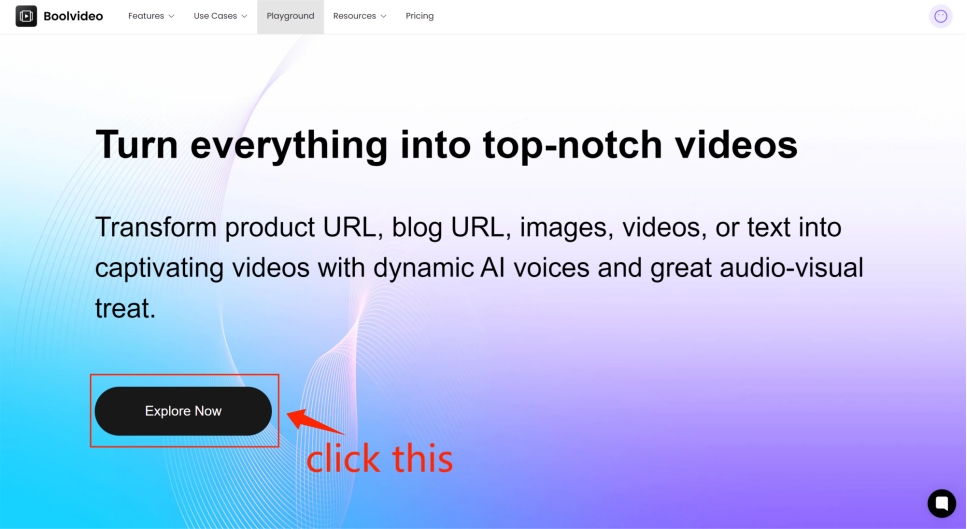
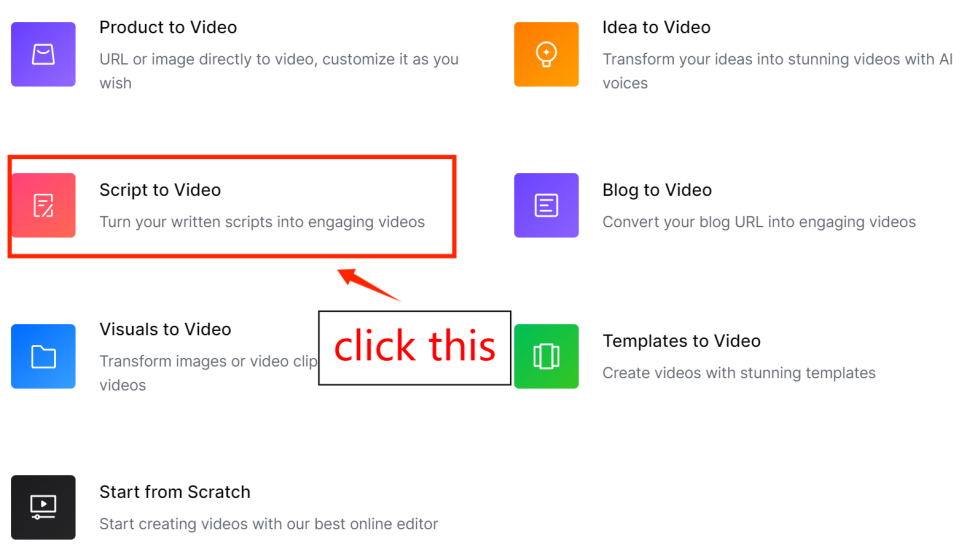
From the home page click 'Explore Now' to enter the main page, then select ‘Script to Video'.
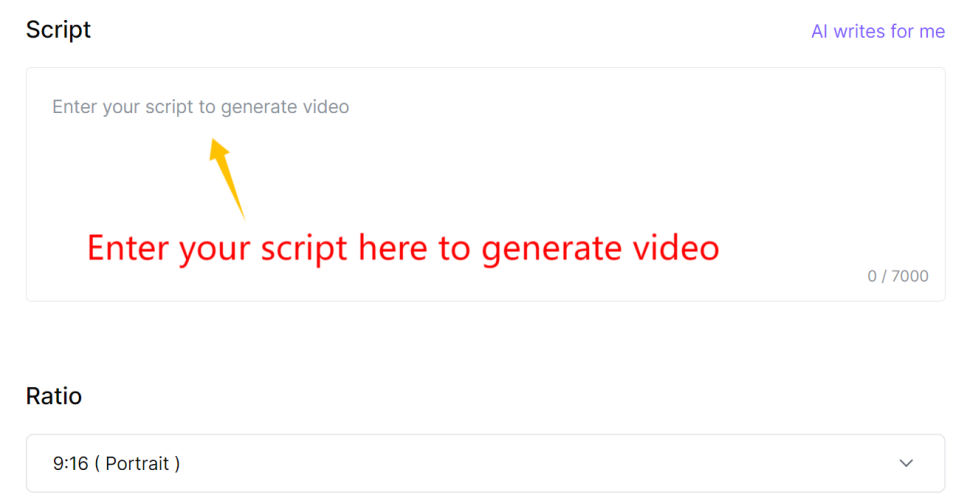
Step2: Input your script and personalize video properties
According to the prompts, enter the script and select the video aspect ratio, then click 'Generate' to create the video.
Step3: Preview and Customize your video
The generated video can be edited in the Scene editor, where you can change the language, and choose the video name and resolution upon export. For specific editing tutorials, refer to our other article:How to edit video in Scene Editor.
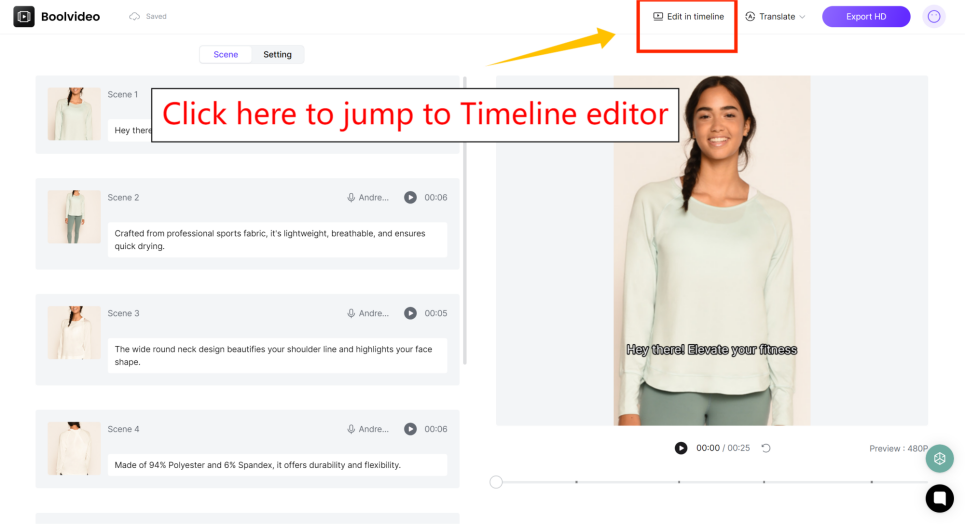
If you are not satisfied with the generated results, you can click 'Edit in timeline' in the top right corner to enter our powerful timeline editor for adjustments. For specific guidance, refer to our other article:
How to edit videos in Timeline Editor
This post will show you step-by-step how to edit videos in Timeline Editor.
Step 4: Export your video
If you are satisfied with the generated results, you can export them directly.
Troubleshooting AI Script to Video Generator
Fix Common Issues
Sometimes, you may have problems with an ai video assistant. Most issues are easy to fix. Here are some things that can go wrong:
Software crashes or freezes
Compatibility conflicts
Poor video quality output
Audio sync problems
Let’s look at what causes these problems and how to fix them:
Text-to-video inaccuracy: If your ai video assistant does not show your message right, try making your script shorter. Use simple and clear words.
Software crashes or freezes: Make sure your computer is strong enough. Update your ai video assistant often to stop bugs.
Compatibility conflicts: Use the right file types. Keep your browser and software updated.
Poor video quality output: Pick high-resolution settings. Start with good pictures and sound for better videos.
Audio sync problems: Match your audio and frame rates. Watch your video often to find sync problems early.
Tip: Use good recording tools and try different settings. Check your text and watch the video timeline to find mistakes. Most ai video assistant tools have tools to help you fix errors fast.
Ensure Quality
You want your videos to look good every time. Here are ways to keep your work great:
Keep your software updated. New ai video assistant versions fix bugs and add new features.
Watch your video while editing. Find mistakes before you finish.
Use good images, clear sound, and strong scripts. These things help your video stand out.
Try different settings. Test different resolutions and formats to see what works best.
AI is always getting better. Tools like Adobe Premiere Pro and Pixflow’s AI Voiceover help you make videos faster and easier. You can change your video quickly and make new versions for social media or websites. OpenAI’s Sora and Google’s Flow help you make movie-like scenes and keep characters the same. Even people working alone can make great videos with these new tools.
Note: Keep learning about new ai video assistant features. The more you learn, the better your videos will be.
You know it is simple to make videos from scripts with AI. This helps you save time and money. You can make your message special for your viewers. It also lets you be more creative. Many creators and small business owners use video editing tools. These tools help them work faster and easier. Try out different platforms to see what works best. Use clear prompts to guide the AI. Test sharing your videos straight to social media.
Pick one main idea for your video. Keep your videos short. Add music that makes people feel something or use subtitles. Start making videos now—your viewers want to see them!
FAQ
How does an ai script to video generator work?
An ai script to video generator reads your script and matches it with visuals, voices, and music. You just upload your text, pick your style, and let the tool do the rest. You get a video in minutes.
Can I use an ai script to video generator without video editing skills?
Yes, you can! These tools are made for beginners. You only need your script. The ai script to video generator guides you through each step. You don’t need to know anything about editing.
What makes an ai script to video generator different from regular video software?
You don’t have to spend hours editing. An ai script to video generator uses smart technology to convert a script into a video fast. You pick your options, and the tool handles the hard parts.
Tip: Try an ai powered script to video converter if you want to generate professional videos quickly.
Can I add my own branding when I use an ai script to video generator?
You can add your logo, colors, and fonts. Most ai script to video generator platforms let you customize your video. You can turn script into video and make it match your brand.
Feature | Available in ai script to video generator? |
|---|---|
Logo Upload | Yes |
Color Selection | Yes |
Font Choices | Yes |
See Also
Harness AI Tools To Craft Innovative Video Scripts
Transform Videos Into Engaging Animations Using AI Tools
Utilize AI To Convert Text Into Captivating Videos
Design Eye-Catching Video Advertisements Using AI Tools
Effortlessly Transform Blogs Into Videos Using AI Technology
Accelerate your video production
10X with Boolvideo